Back to Blog
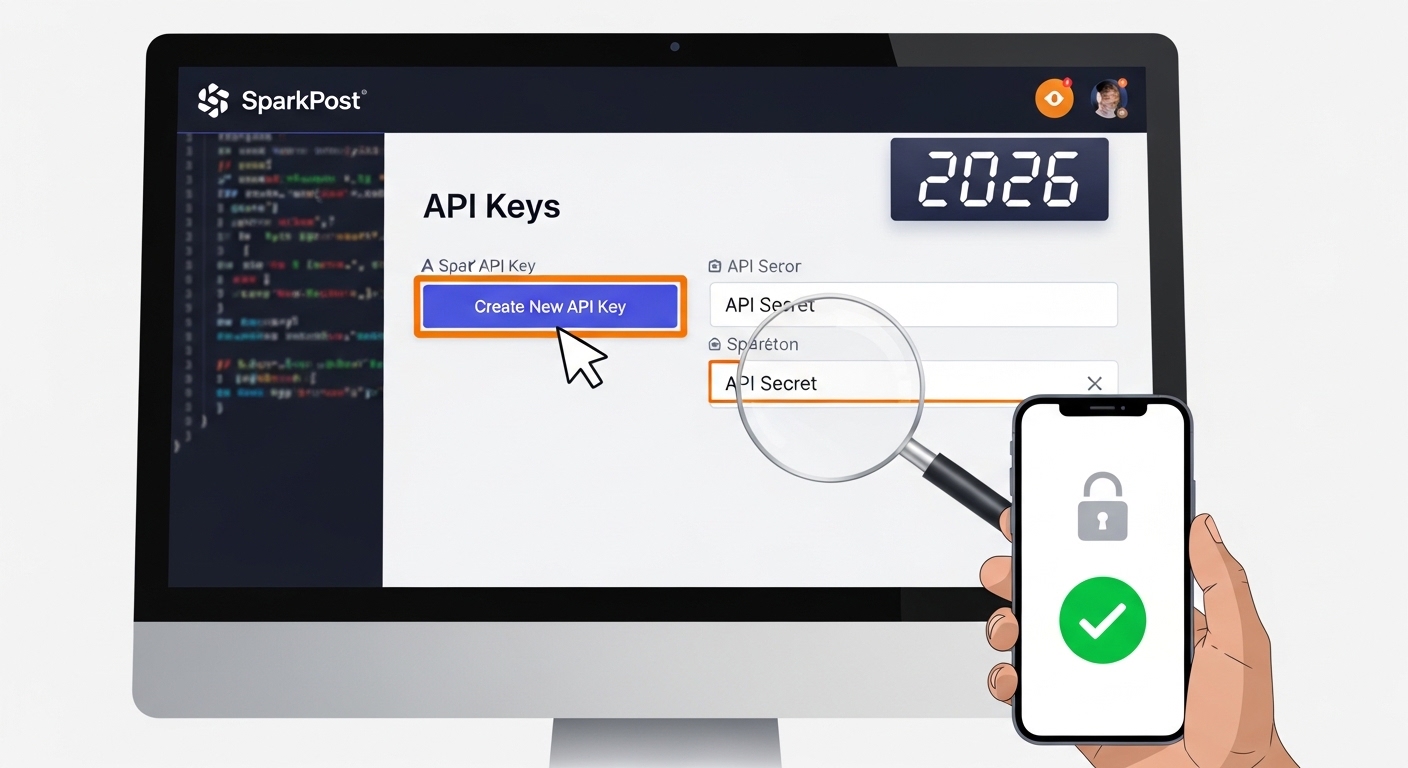
How to Configure SparkPost API - Complete Guide (2026)
Integration Guide
Mar 07, 2026
SparkPost API Secret Setup Guide – Step by Step (2026 Updated)
Configuring SparkPost API
SparkPost (MessageBird) offers world-class deliverability. Follow these 4 steps to connect your platform using your API Secret and Domain.
Get Your API Secret
Log in to SparkPost and navigate to Configuration → API Keys. Create a new key with "Transmissions: Send" permissions.
14ac5499cfdd2bb2859e4476d2e5b...
⚠️ IMPORTANT: SparkPost only displays this key once. Copy it immediately and store it in a password manager.
Verify Your Sending Domain
Go to Configuration → Domains. Add your domain (e.g., mail.yourdomain.com) and complete the DNS verification (SPF/DKIM). Once verified, you are ready to send production traffic.
Connect to Your Platform
Return to your application's settings and paste your API Secret and Domain exactly as they appear in SparkPost. Click Save to finalize the integration.
SparkPost Pricing (2026)
| Plan | Monthly Price | Included Emails | Best For |
|---|---|---|---|
| Starter | $20 | 50,000 | Startups |
| Premier | $75 | 100,000+ | Growing Apps |
| Enterprise | Custom | 250,000+ | High Volume |
🚀 Bonus Tips for Success
- Restricted Keys: For maximum security, always use restricted API keys rather than "Full Access" keys.
- Subdomains: Use a subdomain (like
mail.orem.) to isolate your email reputation. - Sandbox: Use the sandbox domain for quick tests before your custom domain is fully verified.