Back to Blog
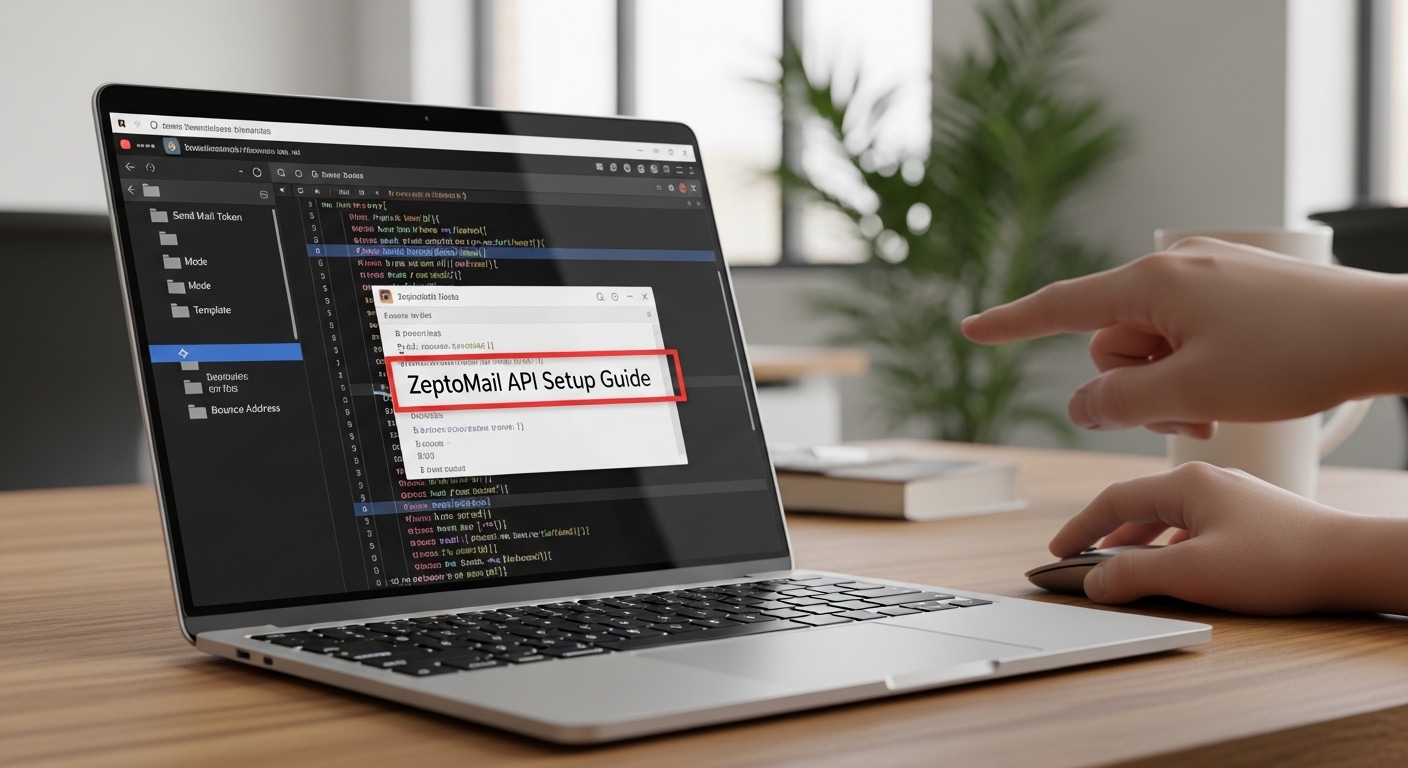
How to Configure ZeptoMail API - Step-by-Step Guide (2026)
Mar 07, 2026
ZeptoMail API Setup Guide – Step by Step (Send Mail Token + Mode + Template + Bounce Address)
Official Integration Guide
Configuring ZeptoMail API
March 2026 Edition • Quick Setup Guide
ZeptoMail by Zoho is a fast and affordable transactional email service. To connect it, you will need: Send Mail Token, Mode, and a Bounce Address.
Prerequisites
- A ZeptoMail account (10,000 free email credits included).
- Your own domain name.
- DNS Access (to add SPF, DKIM, and CNAME records).
STEP 1
Create a Mail Agent
In the ZeptoMail dashboard, click Mail Agents in the left menu. Create a new agent (e.g., "Web App") and select your verified domain.
STEP 2
Verify Your Domain
Navigate to Domains. Add your domain and copy the DNS records provided (TXT/CNAME). Once updated in your registrar, ZeptoMail will verify it automatically.
STEP 3
Retrieve Your Send Mail Token
Open your Mail Agent and go to the SMTP/API tab. Under the API section, copy your Send Mail Token.
⚠️ Security: This token allows sending from your account. Keep it hidden and never share it publicly.
STEP 4
Setup Bounce Address
In your domain settings, identify your Bounce Subdomain. The address will look like bounce@yourdomain.com. This is required for tracking delivery failures.
Pricing Comparison (2026)
| Item | Cost | Included Emails | Validity |
|---|---|---|---|
| First Credit | FREE | 10,000 emails | 6 Months |
| Standard Credit | $2.50 | 10,000 emails | 6 Months |
| 100k Emails | $25.00 | 100,000 emails | 6 Months |
🚀 Pro Tips for Success
- Raw vs Template: Use "Raw HTML/Text" mode for custom code, or "Template" mode for managed Zoho designs.
- Bounce Tracking: Always set a bounce address to protect your sender reputation.
- No Subscriptions: You only pay for what you use—perfect for scaling startups.